

Inviting Members to Your Team
Add collaborators to your team so they can help manage resources.1
Navigate to Team Settings
Open your team settings page from the dashboard.
2
Click Members
Click on “Invite Members”.
Input an email address and select a role:
- Member: Can manage emails, domains, and webhooks
- Admin: Has all Member permissions plus ability to invite users, update payments, and delete the team
3
Send the Invitation
The new member will receive an email invitation to join the team.
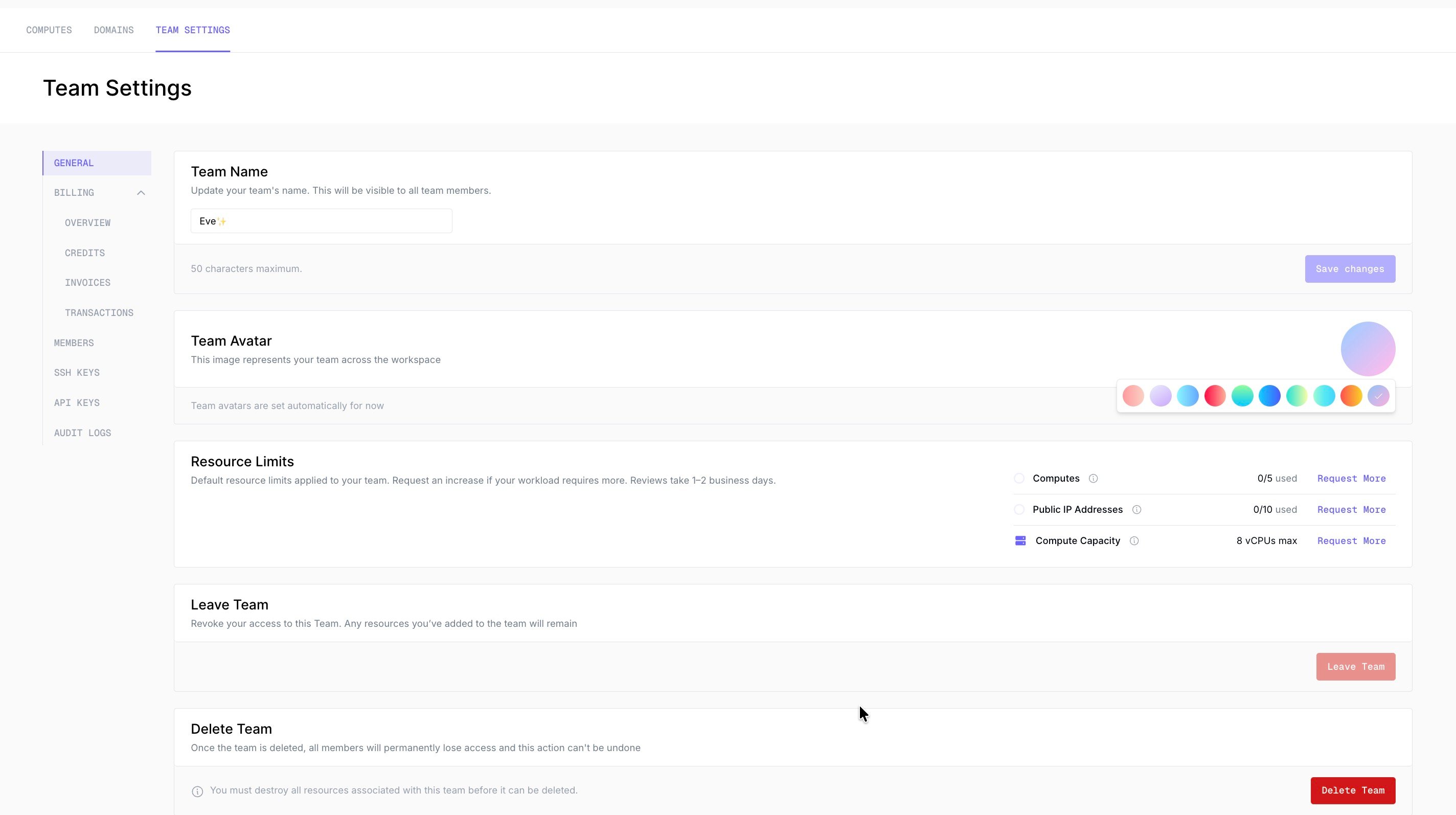
Changing Team Avatar
Customize your team’s appearance with a custom avatar.1
Navigate to Team Settings
Open your team settings page from the dashboard.
2
Team Avatar
Click on the colorful button and choose among the available options.
Switching Between Teams
If you belong to multiple teams, you can switch between them to access different resources.1
Click the Team Name
In the top left corner of any Strettch Cloud page, click on the team name.
2
Select a Team
A dropdown menu appears listing all teams you belong to. Select the team you want to switch to.

Changing Member Roles
As an admin, you can modify the roles of team members.1
Navigate to Team Settings
Open your team settings page from the dashboard.
2
Find the Member
Locate the user whose role you want to change.
3
Edit the Role
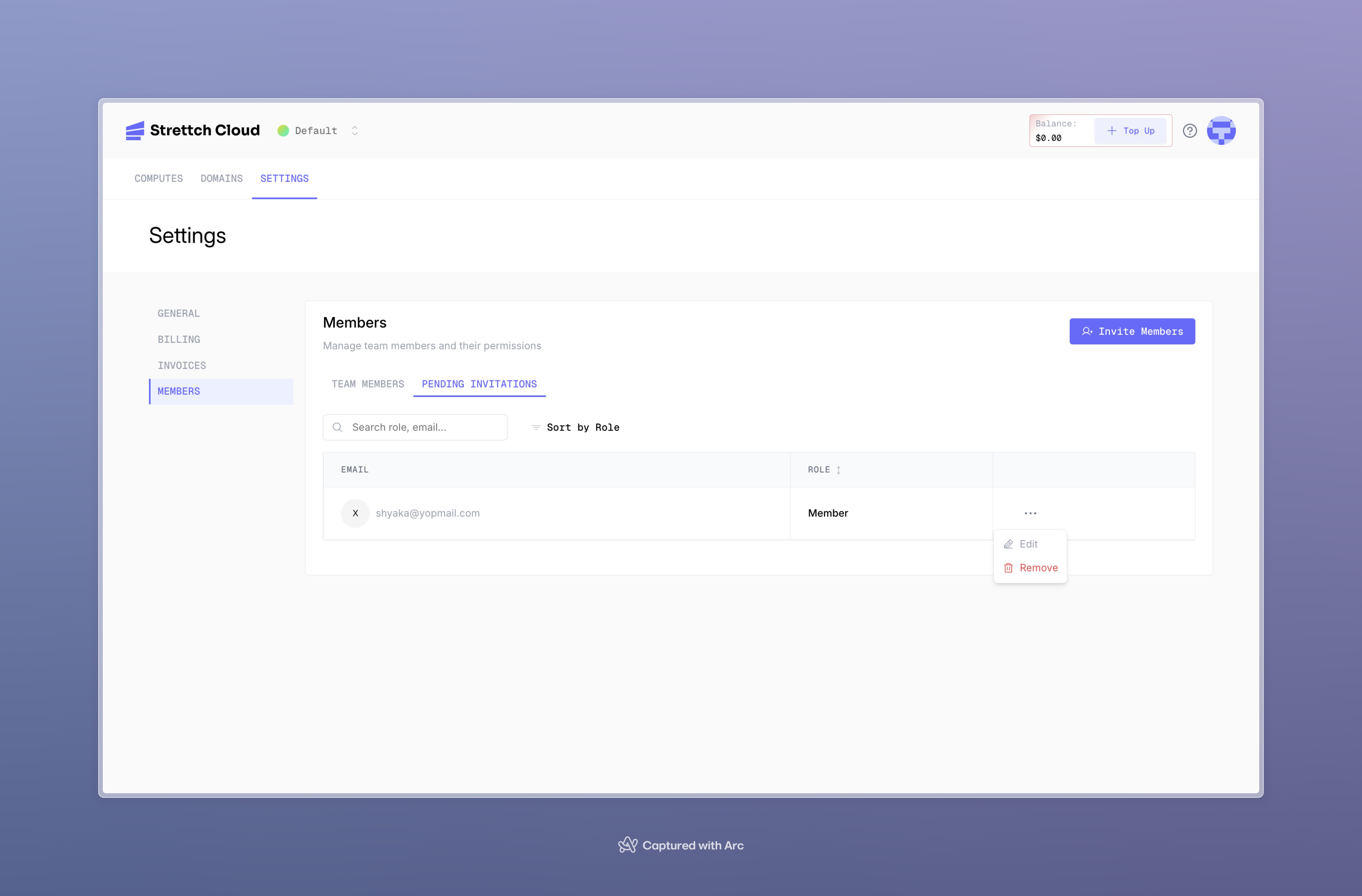
Click the more options button … next to their name and choose Edit.
4
Confirm the Change
Select the new role and confirm. The team member will immediately receive the new permissions.
Removing a Member
As an admin or owner, you can remove a member who no longer needs access to the team.1
Navigate to Team Settings
Open your team settings page from the dashboard.
2
Find the Member
Locate the member you want to remove in the members list.
3
Open Member Options
Click the more options button … next to their name and choose Remove.
4
Confirm
Confirm the removal. The member loses access to the team and its resources immediately, and they receive an email notifying them they’ve been removed.
Transferring Team Ownership
Only the team owner can transfer ownership, and the new owner must already be a member of the team.1
Navigate to Team Settings
Open your team settings page from the dashboard.
2
Find the Member to Promote
Locate the member you want to make the new owner.
3
Initiate the Transfer
Click the more options button … next to their name and choose Transfer Ownership.
4
Confirm the Transfer
Confirm your decision. The selected member receives an email letting them know ownership has been transferred to them.
Leaving a Team
You can leave a team if there is at least one other admin who can manage it.1
Navigate to Team Settings
Open your team settings page from the dashboard.
2
Open Your Member Options
Under the members section, click … next to your name for more options.
3
Select Leave Team
Click the Leave Team button.
4
Confirm Your Decision
Confirm that you want to leave. You will immediately lose access to the team and its resources.
Next Steps
Teams Overview
Learn more about how teams work in Strettch Cloud
Paying Your Bill
Configure payment methods and view team usage
Need help? Contact our support team or visit cloud.strettch.com.